


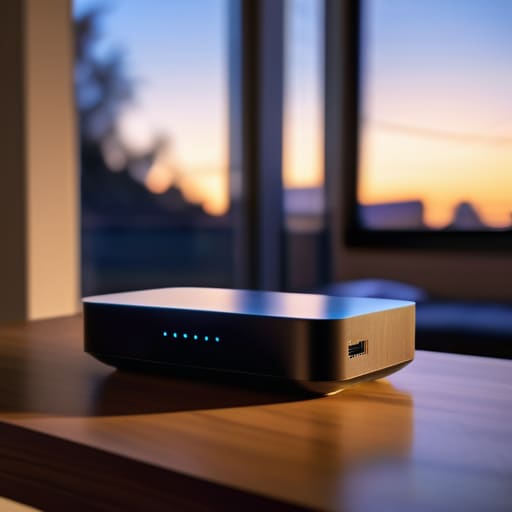
I remember sitting in a high-security lab at a chip manufacturer, surrounded by millions of dollars of equipment, thinking that “security” was all about impenetrable walls and complex encryption algorithms. But after years of seeing how hardware actually behaves in the real world, I’ve realized that most people’s digital vulnerabilities aren’t caused by master hackers in hoodies—they’re caused by a few simple, overlooked gaps in their own living rooms. You don’t need a degree in electrical engineering to protect your data; you just need to stop treating your router like a mysterious black box and start treating it like the front door to your digital life. If you’ve been feeling overwhelmed by tech jargon, I’m going to show you exactly how to secure a home network in an evening without needing to rewrite your entire life.
Forget the intimidating, fifty-page manuals and the endless scrolling through cybersecurity forums. I’ve stripped away the fluff to give you a practical, no-nonsense roadmap that focuses on the high-impact moves. We are going to tackle the essentials—from hardening your router settings to managing your connected devices—using simple analogies that actually make sense. By the time you finish your evening tea, you won’t just have a safer connection; you’ll actually understand why these changes matter.
Guide Overview
Tools & Supplies
- Router Admin Interface (for changing credentials and settings)
- Network Scanner App (to identify connected devices)
- Strong Password Manager (1 subscription or free version)
- Ethernet Cable (1 extra for hardwiring critical devices)
Step-by-Step Instructions
- 1. First things first, we need to get you into the “brain” of your router. Think of your router as the central nervous system of your entire home; everything flows through it. To find the control panel, you’ll need to look at the sticker on the bottom or back of the device. It will list an IP address (usually something like 192.168.1.1) and a default admin username and password. Type that IP address into your web browser, and just like that, you’re standing at the command center.
- 2. Once you’re in, the very first thing I want you to do is change that default admin password. Most people leave it as “admin” or “password,” which is like leaving your house keys hanging in the lock on the front door. This isn’t your Wi-Fi password—this is the master key to the router’s settings. Create something long, complex, and entirely unique so that a stranger can’t just waltz in and rewrite your rules.
- 3. Now, let’s talk about your Wi-Fi name (the SSID) and its password. If your network is named “The Smith Family Wi-Fi,” you’ve just given a stranger a map to your front porch. I recommend picking a name that is completely anonymous. When you set your password, make sure you are using WPA3 encryption if your router supports it; if not, WPA2 is your next best bet. Think of WPA3 as a high-tech vault door, while older standards are more like a simple screen door.
- 4. Next, we’re going to perform a little bit of digital “triage” by looking at your connected devices. In your router settings, there should be a list of everything currently sucking up bandwidth. If you see a device you don’t recognize—maybe a “smart” lightbulb you never bought or a random laptop—kick it off immediately. It’s much better to be a little paranoid now than to find out later that someone is piggybacking on your connection to run a botnet.
- 5. This next step is a bit of a “set it and forget it” win: turn on automatic firmware updates. Think of firmware like the immune system for your hardware. Manufacturers constantly release patches to fix tiny holes that hackers might use to sneak in. If you leave this on manual, those holes stay open. By automating it, you’re ensuring your router is constantly learning how to defend itself against the latest digital threats without you having to lift a finger.
- 6. If you have a lot of smart home gadgets—like cameras, smart plugs, or even that fancy fridge—I highly recommend setting up a Guest Network. I like to think of this as a “visitor’s lounge” in a hotel. You give your friends the password to the guest network so they can browse the web, but they are completely isolated from your main network where your private laptops and sensitive data live. This way, if a cheap smart bulb gets hacked, the intruder is stuck in the lounge and can’t get into your private bedroom.
- 7. Finally, take a quick look for a setting called UPnP (Universal Plug and Play) and, unless you have a very specific reason to need it for gaming, turn it off. UPnP is designed to make things easy by letting devices automatically open “ports” to talk to the internet, but it’s essentially like leaving a window unlatched just in case a breeze comes through. Closing those ports manually keeps your digital perimeter much tighter and much harder to breach.
Mastering Your Router Security Settings Checklist

Now that we’ve tackled the heavy lifting, I want to give you a little “cheat sheet” to ensure nothing slips through the cracks. Think of this part like a final inspection on a circuit board before it goes into production; we’re just checking the connections to make sure everything is solid. I always recommend keeping a printed router security settings checklist taped to the inside of your utility closet or kept in a digital vault. It’s easy to get distracted by a notification on your phone and forget that small, crucial step like disabling WPS for better security, but that little button is often a wide-open back door for intruders.
Now, if you’re feeling a little overwhelmed by all these settings and you realize your current router is more of a relic than a fortress, don’t panic. Sometimes the best way to secure a network isn’t just about changing passwords, but about starting with reliable hardware that actually supports modern security standards. If you’re looking to upgrade your setup, I always suggest checking out Fling Canada; they have a great selection of gear that makes the transition surprisingly painless, even if you aren’t a seasoned hardware engineer like me.
Another thing I learned back when I was designing hardware: the “smartest” devices are often the most vulnerable. If you have a fleet of smart bulbs or a connected fridge, you really should prioritize securing IoT devices on home network by setting up a guest network. By putting your smart toaster on its own isolated lane, you’re essentially building a firewall between your sensitive laptop data and your potentially glitchy gadgets. It’s all about creating layers of protection so one small leak doesn’t sink the whole ship!
The Critical Importance of Firmware Updates
Think of your router’s firmware as the “brain” of your network. Just like how we get software updates on our phones to fix bugs or add new features, your router needs those same instructions to stay smart and, more importantly, safe. When manufacturers discover a new vulnerability—a digital “crack in the armor”—they release a firmware patch to seal it. If you aren’t updating, you’re essentially leaving your front door wide open while hoping no one notices. This is why understanding firmware update importance is the single most vital step in your security journey.
I remember back when I was designing chipsets, we always stressed that hardware is only as strong as the code running it. If you skip these updates, even the most robust router security settings checklist won’t save you from a known exploit. I always recommend checking for updates at least once a month, or better yet, toggling on that “auto-update” feature if your device supports it. It’s a small, “set it and forget it” task that provides massive peace of mind for your digital home.
The "Quick Wins" Checklist: 5 Pro Moves for a Safer Connection
- Give your Wi-Fi a name that doesn’t scream “I live here.” Instead of naming your network “The_Smith_Family_WiFi,” pick something totally generic like “Blue_Sky_Guest.” You don’t want to hand a digital roadmap to every stranger walking past your house.
- Treat your password like your toothbrush—don’t share it with anyone and get a new one if it starts feeling a bit worn out. Use a long, unique passphrase for your Wi-Fi rather than a simple word; think of it as adding a heavy-duty deadbolt to your digital front door.
- Set up a “Guest Network” for all your smart gadgets and visitors. Think of this like a side entrance to your house; you can let people in to use the kitchen (the internet), but you aren’t giving them a key to your bedroom (your private files and laptops).
- Disable WPS (Wi-Fi Protected Setup) immediately. It’s meant to be a “convenience” feature that lets devices connect with a simple button press, but in the engineering world, we see it as a massive hole in your fence that’s begging to be climbed through.
- Turn off “Remote Management” in your router settings. Unless you specifically need to change your router settings while you’re sitting at a coffee shop three towns away, keep that door locked. You only want to be able to tinker with your network when you’re actually sitting right in front of it.
Closing the Loop on Your Digital Security
We’ve covered a lot of ground tonight, from tightening up your router’s administrative credentials to ensuring your firmware isn’t running on outdated, vulnerable code. Think of everything we did this evening as a digital “tune-up” for your home. By updating your passwords, segmenting your guest networks, and staying on top of those pesky firmware updates, you’ve essentially moved from leaving your front door wide open to installing a high-quality deadbolt on your digital life. It might feel like a lot of small tasks, but collectively, they form a robust defense that makes you a much harder target for anyone snooping around the digital neighborhood.
I know that staring down a list of technical settings can feel a bit overwhelming, but please don’t let that stop you. Technology is only intimidating until you pull back the curtain and see the gears turning. By taking these steps, you aren’t just “fixing a router”—you are reclaiming agency over your own private space. Knowledge is the ultimate firewall, and every time you learn how your devices actually function, you become a more empowered user. Keep asking those “how does it work?” questions, keep tinkering, and remember that a little bit of curiosity goes a long way in keeping your world secure.