



I still remember the day my grandmother called me, frustrated because her computer was running slow and she couldn’t figure out why. It turned out that she needed to learn how to free up disk space on her computer, but the instructions she found online were confusing and overwhelming. As someone who’s passionate about making technology accessible, I believe that freeing up disk space shouldn’t be a daunting task. In fact, it’s quite simple once you know where to start. If you’re struggling with a slow computer and want to learn how to free up disk space on your computer, you’re in the right place.
In this article, I’ll walk you through a step-by-step process to reclaim your computer’s disk space and get it running smoothly again. You’ll learn how to identify and remove unnecessary files, safely delete temporary data, and even discover some handy tools to help you keep your computer organized. My goal is to empower you with the knowledge and confidence to take control of your computer’s storage, so you can focus on the things that matter most to you. By the end of this guide, you’ll be able to free up disk space on your computer like a pro, and you’ll be amazed at how much of a difference it can make.
Table of Contents
Guide Overview: What You'll Need
Total Time: 30 minutes to 1 hour
Estimated Cost: Free
Difficulty Level: Easy
Tools Required
- Computer (with internet connection)
- Disk Cleanup Software (pre-installed or downloadable)
- External Hard Drive (optional)
Step-by-Step Instructions
- 1. First, don’t panic! Let’s start by understanding that freeing up disk space is a straightforward process. Think of it like cleaning out your garage – you need to get rid of the things you don’t need to make room for the things you do. To begin, click on the “This PC” or “Computer” icon on your desktop, depending on your operating system, and then click on the “Properties” option to see how much free space you have available.
- 2. Next, let’s take a look at the disk space usage to identify what’s taking up the most space. You can do this by clicking on the “Storage” tab, where you’ll see a breakdown of how your disk space is being used. This will give you an idea of where to focus your cleaning efforts. Look for large files, programs, or folders that you no longer need.
- 3. Now, it’s time to remove unnecessary programs. Go to your “Control Panel” and click on “Programs and Features” (in Windows) or “Applications” (in macOS). Here, you’ll see a list of all the programs installed on your computer. Go through the list and uninstall any programs you don’t use or need. Remember, every gigabyte counts, so be ruthless – if you haven’t used it in the last year, it’s probably safe to get rid of it.
- 4. After removing unwanted programs, let’s tackle temporary files. These are files that your computer uses temporarily but doesn’t need to keep. You can use the “Disk Cleanup” tool (built into Windows) or “Clean My Mac” (for macOS) to automatically remove these files. This is like taking out the trash – it’s quick, easy, and makes a big difference.
- 5. The next step is to check for duplicate files. Sometimes, you’ll have multiple copies of the same file on your computer, which can waste a lot of space. You can use a third-party program like Duplicate Cleaner to find and remove these duplicates. It’s like finding two identical tools in your toolbox – you only need one, so get rid of the other.
- 6. Now, let’s talk about cloud storage. If you have files stored locally on your computer that you also have in cloud storage (like Google Drive, Dropbox, or iCloud), consider removing the local copies. This will free up a significant amount of space, especially if you have large files like videos or high-resolution photos. Just make sure you have a stable internet connection to access your cloud storage when you need it.
- 7. Finally, organize your files in a way that makes sense to you. Create folders for different types of files (like documents, photos, and videos) and keep them organized. This won’t directly free up space, but it will make it easier to find and remove files you don’t need in the future. Think of it like labeling the boxes in your garage – it makes everything easier to find and manage.
Free Up Disk Space Easily
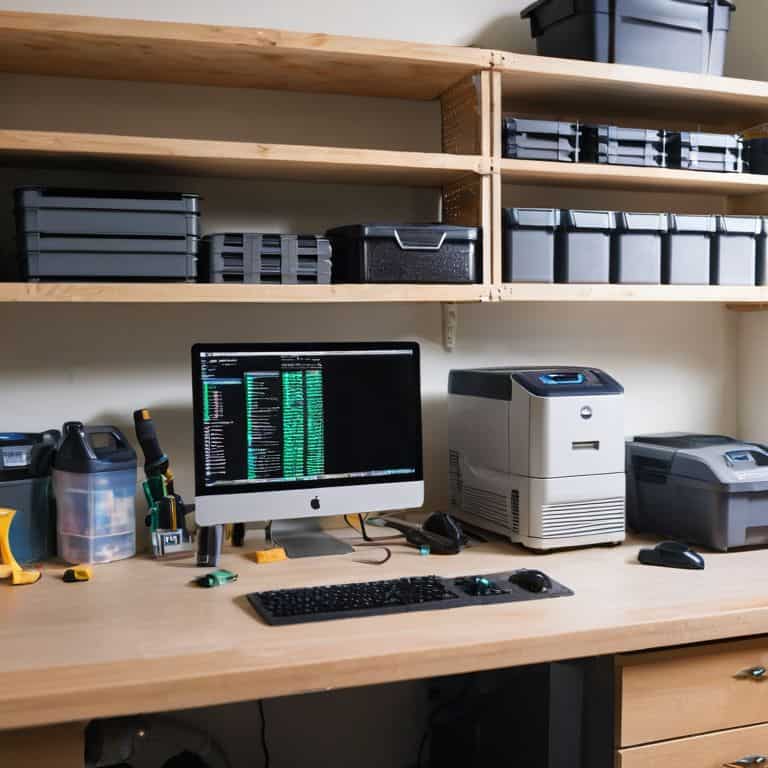
To clearing system files and reclaiming disk space, it’s essential to understand that your computer’s storage is like a garage – it can quickly become cluttered with items you no longer need. Regularly removing duplicate data and old files can make a significant difference in maintaining your computer’s performance.
When it comes to optimizing storage capacity, consider the analogy of a car’s fuel tank. Just as a car runs more efficiently with a clean fuel system, your computer operates better with a well-managed disk. This can involve managing disk partitions to ensure that your data is organized and easily accessible.
By implementing these strategies, you can effectively reclaiming temporary storage and keep your computer running smoothly. Using disk cleanup software can also be beneficial in identifying and eliminating unnecessary files, making the process of maintaining your computer’s disk space easier and less time-consuming.
Clearing System Files for Breathings Room
To really get your computer breathing some fresh air, let’s tackle those system files. Think of them like the dusty old maps in your car’s glove compartment – they might have been useful once, but now they’re just taking up space. Clearing out system files can be a bit like cleaning out that compartment: you need to know what you’re looking for. I recommend using the built-in Disk Cleanup tool, which is like a trusty navigator that helps you find and remove unnecessary files.
By running Disk Cleanup, you’ll be able to safely delete temporary files, system files, and other items you no longer need. It’s like giving your computer’s engine a tune-up – it might not be the most glamorous task, but it’ll get your machine running more smoothly. Just be sure to follow the prompts carefully and only delete files you’re sure you don’t need. With a few clicks, you’ll be on your way to reclaiming some valuable disk space and keeping your computer running at its best.
Removing Duplicate Data for Optimized Storage
To really get your computer’s storage in shape, let’s talk about removing duplicate data. Think of it like cleaning out your garage – you don’t need two of the same tool, right? Duplicate files, like identical documents or photos, take up valuable space. I like to use a simple car analogy: imagine each file is like a car in a parking lot. If you have two cars that are exactly the same, you only need one, right?
I recommend using a dedicated tool to scan your computer for duplicate files. These tools are like a trusted mechanic, helping you identify and remove the duplicates, freeing up space for what really matters. Don’t panic, this process is straightforward and safe. By removing duplicate data, you’re essentially giving your computer a tune-up, making it run more efficiently and freeing up room for new files and programs.
Disk Space Liberators: 5 Essential Tips

- Regularly cleaning out temporary files is like changing your car’s oil – it keeps things running smoothly and prevents clutter buildup
- Uninstalling unused programs is akin to removing unnecessary cargo from your vehicle, it lightens the load and improves overall performance
- Compressing large files is similar to packing a suitcase efficiently, you can fit more in without sacrificing accessibility
- Removing duplicate files is like consolidating your music library, it eliminates unnecessary copies and frees up space for new content
- Emptying the recycle bin is like taking out the trash, it might seem obvious but it’s often overlooked and can make a significant difference in freeing up disk space
Key Takeaways for a Clutter-Free Computer
Don’t Panic! Regularly freeing up disk space can significantly improve your computer’s performance and reduce the risk of crashes, much like how regular oil changes keep your car running smoothly
By following the step-by-step guide and implementing simple habits like clearing system files and removing duplicate data, you can reclaim valuable storage space and keep your computer organized, making it easier to find what you need when you need it
Remember, maintaining your computer’s disk space is an ongoing process, so be sure to schedule regular clean-ups and consider implementing automated tools to help keep your digital life organized and clutter-free, just like how you might set reminders for car maintenance to keep your vehicle in top shape
Disk Space Liberation
Freeing up disk space is like giving your computer a tune-up – it’s a simple way to get your digital life running smoothly again, and it all starts with taking control of what’s taking up space on your hard drive.
David Fletcher
Wrapping Up: You're Now a Disk Space Master!
Don’t Panic! You’ve made it through the guide, and by now, you should have a good grasp of how to free up disk space on your computer. We’ve covered the essential steps, from clearing system files to removing duplicate data, and even touched on how these actions can give your computer some much-needed breathing room. Remember, the key to maintaining a healthy computer is regular maintenance, so try to set aside some time each month to go through these steps again. It’s a bit like changing the oil in your car – it keeps everything running smoothly and prevents bigger problems down the line.
As you close this guide, I want to leave you with a final thought: you are capable of taking control of your technology. Don’t be afraid to experiment and learn more about your devices. With patience and practice, you’ll become more confident in your ability to troubleshoot and solve problems on your own. Keep in mind, the goal of technology is to make our lives easier, not more complicated. So, go ahead, take a deep breath, and enjoy the extra space you’ve just freed up – you’ve earned it!
Frequently Asked Questions
What are some common system files that are safe to delete to free up disk space?
Don’t Panic! Common safe-to-delete system files include temporary files, system error logs, and cached updates. Think of them like your car’s junk trunk – clearing them out won’t hurt a thing! Just be sure to use the built-in Disk Cleanup tool to avoid accidents.
How do I identify and remove duplicate files on my computer without accidentally deleting important data?
Don’t Panic! To safely remove duplicates, use a trusted duplicate file finder tool, which will scan and highlight identical files. Review the results carefully, and only delete duplicates if you’re certain they’re unnecessary. Think of it like cleaning out your garage – you want to get rid of the extra stuff, but keep the important tools.
Are there any automated tools or software that can help me regularly clean up and optimize my computer's disk space?
Don’t Panic! Yes, there are automated tools that can help. I recommend checking out disk cleanup software like CCleaner or Glary Utilities. These tools can automatically scan and remove temporary files, system logs, and other items taking up space, making it easy to keep your computer running smoothly.